Overview
Installatron backups are an easy way to restore applications to previous versions in case you make changes you don’t like or delete something that contributed to the functionality of your site. You can backup to your hosting account or to your own storage location, which would be beneficial if you are moving between accounts.
Note: If you are interested in automatic updates to your Installatron applications, visit that guide here.
Backup Policy
Installatron backups are limited to 2 backups per application. Any new backup created, whether manual or automatic, will cycle out the oldest existing backup. Additionally, any backups older than 1 year are deleted automatically. If you need backups beyond what Installatron stores, Reclaim also provides off-site JetBackups, which can restore your entire cPanel account or individual files. See our guide on restoring JetBackups for more information.
How to Create Automated Backups in Installatron
Navigate to cPanel > Applications > My Apps and locate the install to which you'd like to add automated backups. Click the "Edit" button next to the application you'd like to set up automated backups for.
Then navigate to the Settings tab, and select Auto-Update from the left-hand menu bar.
In the Automatic Backup section, you will get to choose how often backups will be created and how long they will be saved.

Hovering over the option gives a pop-up with more in-depth explanation of what each option entails. For example, hovering over the first option (1 weekly + 1 monthly) explains one 1-7 day old backup and one 8-37 day old backup will be automatically maintained at the Default Backup Location that you’ve specified above.

Once you choose the option you’d like, hit Save All at the bottom right of the page.
Under the Automatic Backup section, you can also select the Default Backup Location. The default backup location is “Reclaim Hosting Installatron Backups,” with a limitation being both 2 backups per application and the total available storage space on your hosting plan.
Installatron Automated backups are stored locally, which means they can take up space you could otherwise use for your website. If you need to free up storage, you can also choose to backup zip files through many other offsite locations, including FTP, Google Drive, and Dropbox, among others. We have instructions on how to set up an alternative location for your Installatron backups here: Alternative Backup Options in Installatron.
How to Restore Installatron Backups
Go to cPanel > Applications > My Apps > My Backups tab and you will find all the Installatron backups on your account.
There, you can see the next scheduled backup planned to take place as well as any manual backups you’ve created. On this page, you can see when your backups were taken, as well as when they are set to expire.
To restore a backup, select the three line menu button to the right of the backup you'd like to restore. Then select Restore from the dropdown menu
When restoring, you can restore to the original location or to a different location.
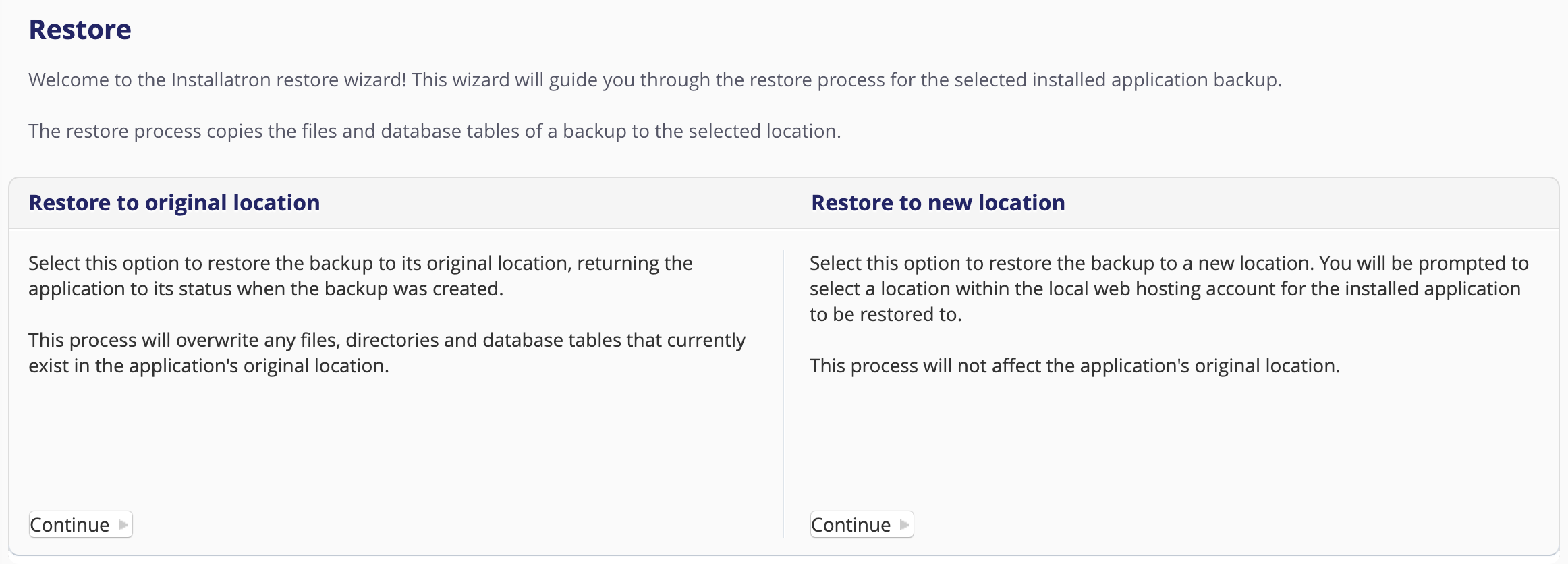
If you choose to restore to a different location, you select which domain/subdomain you’d like to create the installation.
Keep in mind you can only have one install per location, adding anything in the “Directory” field will install the backup in that subfolder.

Once you’ve decided where to install the backup, and made any changes to database/settings beyond the automatic ones, scroll to the bottom and click Restore:

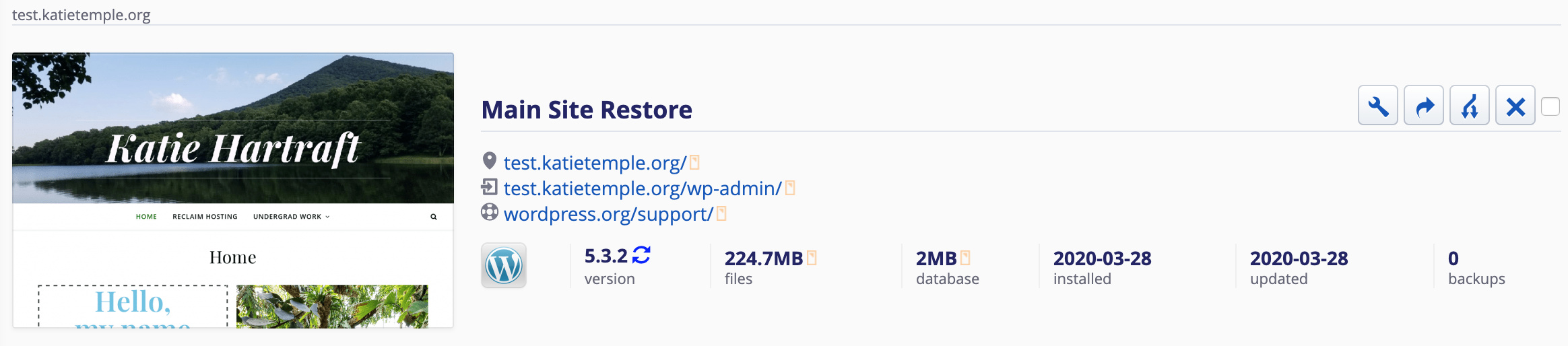
Once it’s done, you’ll see the entry in your My Apps page, with the restored backup with the old name + Restore, but you can change the name by changing the title in the settings/details.